15-Key LCD Macro Controller: Faster Streams & Cleaner Edits
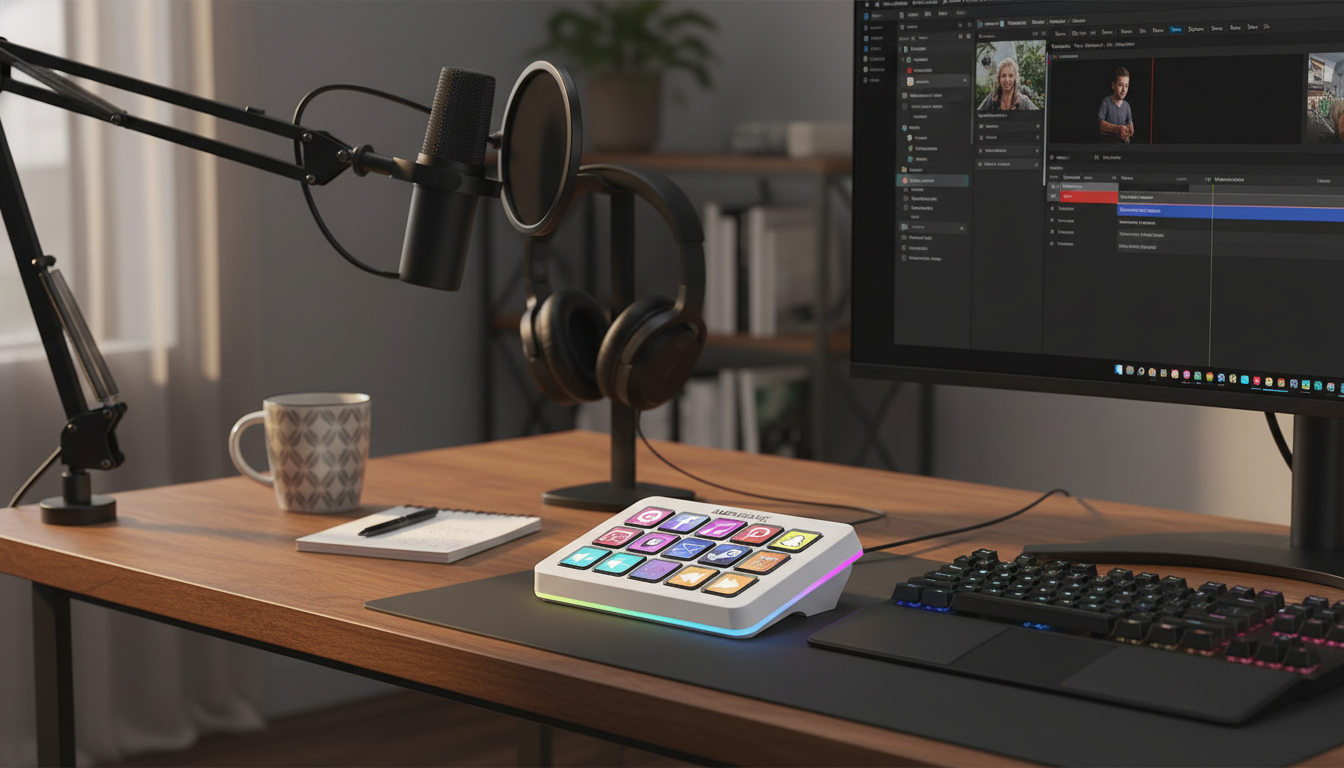
15-Key LCD Macro Stream Controller with RGB Lighting: Faster Scenes, Cleaner Edits
A compact macro pad can remove friction from streaming and editing by putting scene changes, audio controls, and repetitive shortcuts on dedicated keys. This 15-key LCD controller combines customizable on-key icons with RGB lighting, making it easier to trigger complex actions quickly while keeping focus on the content. Instead of hunting for the right window or remembering layered keyboard combos, you can build a layout that matches how you actually work—live, under pressure, and often on a tight timeline. For more guidance, see [PDF] NIS-Elements AR (Advanced Research) User’s Guide (Ver.4.50).
What It Is and What It Helps With
A 15-key LCD macro controller is a small desktop control surface with programmable keys—each key can show its own icon/label on a mini LCD screen. Paired with RGB lighting, it becomes a quick “command center” for actions you repeat constantly. For further reading, see ATEM Mini | Blackmagic Design.
- 15 programmable LCD keys that can display custom icons or labels for quick recognition
- RGB lighting for visibility and aesthetic matching with a desk or studio setup
- Designed for common streaming actions (scenes, sources, mute, overlays) and editing actions (cuts, markers, ripple delete, export steps)
- Reduces reliance on multi-key keyboard combos that are easy to forget under pressure
- Supports a more consistent workflow when switching between live production and post-production
Most creators feel the difference immediately: fewer mis-clicks, faster transitions, and fewer “wait—what hotkey was that?” moments. If you use OBS, start with the official reference for hotkeys and setup options in the OBS Studio Documentation.
Best Uses for Streaming Setups
- Scene switching: map each key to a scene (Starting Soon, Live, BRB, Ending) to avoid mouse hunting
- Audio control: one-tap mic mute/unmute, push-to-talk toggles, and music volume steps
- Overlay control: turn on/off lower thirds, alerts, chat panels, and sponsor frames
- Clip/marker actions: create stream markers for highlight editing later
- Safety actions: one key for “panic” (hide sources, switch to BRB, mute mic) to recover from mistakes
The biggest win for livestreaming is reliability. When every key has an unmistakable icon and a predictable result, you can keep your eyes on chat, gameplay, or your camera framing instead of bouncing between software panels.
Best Uses for Editing Workflows
- Timeline navigation: jump cut-to-cut, ripple delete, split, and add markers without breaking rhythm
- Frequent tool changes: map common tools and panels to reduce repetitive mouse travel
- Export routines: create a macro sequence that opens export, selects a preset, and starts render (where supported by the software)
- Asset insertion: map keys to paste common text, titles, or file paths for quicker assembly
- Consistency across apps: keep the same key positions for “Cut”, “Marker”, “Undo”, and “Export” even when switching editors
If you edit in Resolve, learning the default shortcuts (then mapping your favorites to dedicated keys) can speed up muscle memory—Blackmagic maintains a helpful reference here: DaVinci Resolve Keyboard Shortcuts (Blackmagic Design Support).
Key Features to Look For When Setting It Up
Quick Setup Checklist
Suggested Button Map (Starter Layout)
| Key Position | Label/Icon | Action | Tip |
|---|---|---|---|
| 1 | Starting Soon | Switch to starting scene | Pair with low music volume preset |
| 2 | Live | Switch to main live scene | Confirm mic unmuted before switching |
| 3 | BRB | Switch to break scene | Auto-mute mic if supported |
| 4 | Ending | Switch to outro scene | Fade music out over a few seconds |
| 5 | Panic | Hide sensitive sources + mute + BRB | Use a distinct red icon/lighting |
| 6 | Mic | Toggle mic mute | Place near center for easy reach |
| 7 | Desktop Audio | Toggle or step volume | Set small increments (e.g., 5%) |
| 8 | Gameplay | Switch to gameplay scene | Match with correct capture source |
| 9 | Camera | Switch to camera/just chatting scene | Ensure lighting scene is ready |
| 10 | Overlay | Toggle overlay source | Great for sponsor frames |
| 11 | Marker | Create stream marker / edit marker | Use consistent naming if possible |
| 12 | Clip | Trigger clip/hotkey | Test platform-specific behavior |
| 13 | Record | Start/stop recording | Use when capturing clean local copy |
| 14 | Stream | Start/stop stream | Add a confirmation step if available |
| 15 | Notes/Chat | Open notes or chat window | Keep it as a “return to control” key |
Lighting and LCD Icons That Improve Speed
Who This Controller Fits Best
Product Options Available
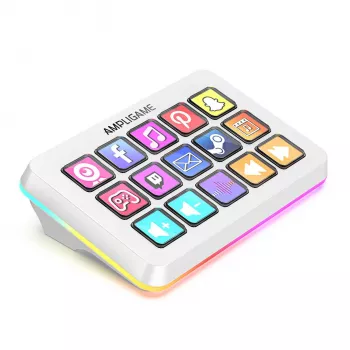
- 15-Key LCD Macro Stream Controller with RGB Lighting for Live Streaming & Editing — a dedicated shortcut surface for scenes, audio toggles, overlays, and editing macros.
- Lightweight Waterproof Down Tote Bag — a practical carry option for transporting small creator gear like cables, adapters, and compact controllers.
- Sandalwood Backflow Incense Burner – Alpine Flowing Water Aromatherapy — a studio-friendly accessory for creating a calmer, more comfortable workspace between takes.
FAQ
Does a 15-key macro controller work with OBS Studio hotkeys?
Yes. You set up hotkeys inside OBS, then assign those same keyboard shortcuts to the controller’s keys; for best results, test whether OBS needs to be the active/focused app for specific actions to trigger consistently.
Can the LCD keys show custom icons for each command?
Yes—each key can display a custom icon or label so commands are easy to recognize at a glance. Simple, high-contrast icons and consistent category colors tend to be the fastest to read during live moments.
Is it useful for video editing, not just live streaming?
It’s useful for editing because you can map common shortcuts like split, ripple delete, markers, and export to dedicated keys, then save an “editing” profile. Keeping the same key positions across apps helps build reliable muscle memory.










Leave a comment