8K Wireless Gaming Mouse Setup for Low-Latency Aim
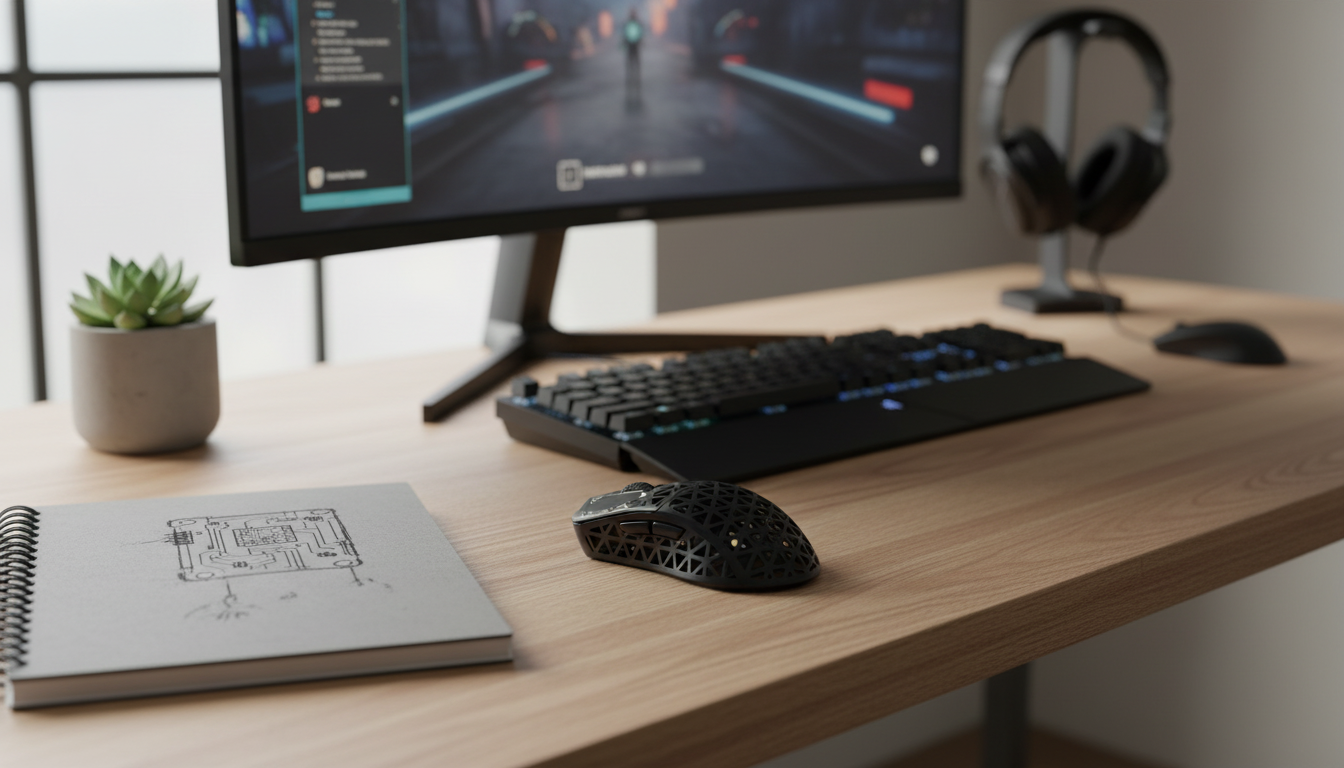
8K Wireless Gaming Mouse: Speed, Precision, and Setup for Competitive Play
A fast wireless mouse can sharpen aim, reduce input delay, and stay consistent across long sessions. “8K” mice promise extremely frequent input updates, but the best results come from pairing the right settings with a stable wireless link and a smooth system. Below is a practical breakdown of what 8K performance means, when it matters most, and how to set up an 8K wireless gaming mouse for reliable, low-latency control.
What “8K” Means for a Gaming Mouse
In gaming mice, “8K” commonly refers to an 8000 Hz polling rate—meaning the mouse can report position updates to the computer up to 8000 times per second. In simple terms, the mouse sends more frequent movement snapshots, which can reduce the time between a hand movement and the on-screen response.
That said, the real-world gain depends on the full chain: the game engine’s input handling, your monitor’s refresh rate, and how consistently your PC can process those extra reports. An 8K setting is best viewed as an optional performance mode rather than a universal “always on” switch.
Also, wireless “feel” isn’t determined by polling rate alone. Sensor quality, firmware tuning, receiver stability, and interference control all influence whether tracking stays clean and predictable when you flick, micro-correct, and hold angles.
Quick Specs Snapshot: Polling Rates and Practical Impact
Higher polling rates reduce the report interval, which can tighten responsiveness. The tradeoff is that some systems see increased CPU overhead—especially with very high DPI and rapid movement in hectic fights. For many players, stability and consistent tracking beat chasing the highest number; an 8K option is most valuable when it’s configurable.
| Polling rate | Report interval | Typical use |
|---|---|---|
| 1000 Hz | ~1.0 ms | Balanced default for most games and PCs |
| 2000 Hz | ~0.5 ms | Smoother feel on high-refresh monitors; moderate CPU increase |
| 4000 Hz | ~0.25 ms | Competitive tuning on capable systems |
| 8000 Hz | ~0.125 ms | Max responsiveness; best with strong CPU and stable wireless link |
Wireless Performance: Latency, Interference, and Reliability
For competitive play, a dedicated 2.4 GHz receiver is typically the best choice. Keep the receiver close to the mouse—ideally in a front USB port or via a short extension—to reduce dropouts and improve consistency during fast movement.
Avoid placing the receiver behind a PC case or near dense cable bundles. Metal, clutter, and poor orientation can weaken signal quality enough to show up as tiny hiccups when you’re tracking heads or controlling recoil. Common interference sources include Wi‑Fi routers, Bluetooth devices, USB 3.x hubs, and external drives. A small reposition—moving the dongle a foot closer or away from a noisy hub—can make a noticeable difference.
If your mouse supports multiple wireless modes (2.4 GHz and Bluetooth), treat them as different tools: use 2.4 GHz for gaming-grade responsiveness and reserve Bluetooth for travel, work, or quick pairing. For deeper technical background on how input devices communicate, the USB-IF’s HID documentation is a helpful reference: USB Device Class Definition for Human Interface Devices (HID). For Bluetooth behavior and constraints, see the Bluetooth Core Specification.
Sensor and Tracking Setup That Actually Matters
Start with a comfortable DPI range and stick to it. Many players settle on a moderate DPI and tune in-game sensitivity for repeatable muscle memory. Once you’re stable, you can adjust one variable at a time to avoid chasing your tail.
A simple setup order that reduces guesswork
First, pick a stable polling rate (often 1000 or 2000 Hz) and confirm the mouse feels consistent. Then adjust DPI and in-game sensitivity. Changing polling rate, DPI, and sensitivity all at once can make aim feel “off” without a clear cause.
Don’t ignore the basics: mousepad surface and cleanliness affect tracking more than most settings menus. Wipe dust from the sensor window and keep the pad clean to maintain consistent glide and accurate reads—especially if you play low sensitivity and make larger swipes.
8K Mode: When to Use It (and When Not To)
Comfort and Control: Shape, Weight, and Grip
Battery and Charging: Keeping Wireless Consistent
Recommended Picks
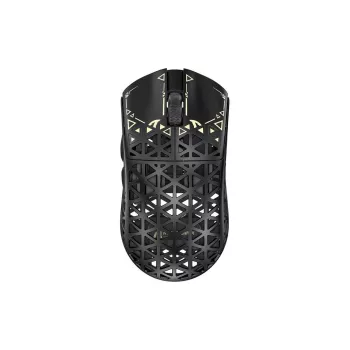
If the goal is cable-free speed with configurable high polling rates, a dedicated 8K Wireless Gaming Mouse is a strong option for responsive tracking and flexible tuning. Start at 1000–2000 Hz as a stable baseline, then step up to 4000–8000 Hz after confirming system stability and good receiver placement.
For carrying gear to LAN nights or keeping a cleaner desk setup, a roomy Lightweight Waterproof Down Tote Bag can help protect peripherals, cables, and a headset from bumps and weather.
For a calmer desk vibe between matches, the Sandalwood Backflow Incense Burner – Alpine Flowing Water Aromatherapy can be a simple way to make a setup feel more like a dedicated space (just keep airflow in mind).
FAQ
Will 8000 Hz polling rate improve aim in every game?
Not in every game. An 8000 Hz rate can reduce the input report interval, but the benefit depends on the game engine, your PC’s ability to process the added reports, and your monitor’s refresh rate; testing 1000/2000/4000/8000 and keeping the smoothest stable setting usually works best.
Why does an 8K mouse sometimes feel stuttery?
Stutter can come from extra CPU overhead, heavy background tasks, power-saving modes, unstable receiver placement, or USB/controller quirks. Lower the polling rate one step, move the receiver closer, update firmware/software, and try a different USB port to isolate the cause.
Is 2.4 GHz better than Bluetooth for gaming?
For competitive gaming, yes in most cases. Dedicated 2.4 GHz receivers typically deliver lower latency and more consistent performance, while Bluetooth is more about convenience and broad compatibility.









Leave a comment